Introduction
If you’re starting your first website, understanding the WordPress dashboard and hosting process is the key to success. WordPress powers more than 40% of websites worldwide, from small blogs to large business portals. In this blog, we’ll guide you step by step on what the WordPress dashboard is and how to do WordPress hosting for your site easily.
What Is WordPress Dashboard?

The WordPress dashboard is the control panel of your website. It’s where you manage everything from posts and pages to themes, plugins, and settings. Once you log in to your WordPress website, you’ll land on the dashboard screen.
On the left-hand menu, you’ll find sections like Posts, Media, Pages, Appearance, Plugins, and Settings. Each one helps you customize and maintain your site without needing coding skills.
Main Sections of the WordPress Dashboard

Let’s break down some of the main areas you’ll use regularly:
- Posts – This is where you create and edit blog posts for your site
- Pages – You can build essential pages like Home, About, Contact, etc.
- Appearance – Customize your website’s design and install new themes.
- Plugins – Add functionality like SEO tools, contact forms, or security features.
- Settings – Adjust your website’s name, time zone, and other basic configurations.
Once you get used to it, navigating the dashboard becomes very easy and fast.
Why Understanding the WordPress Dashboard Is Important

Learning how to use the WordPress dashboard saves time and improves your website’s performance. You can manage updates, add plugins, schedule posts, and track traffic without external tools. It’s designed to make website management simple for beginners and professionals a like. WordPress Hosting
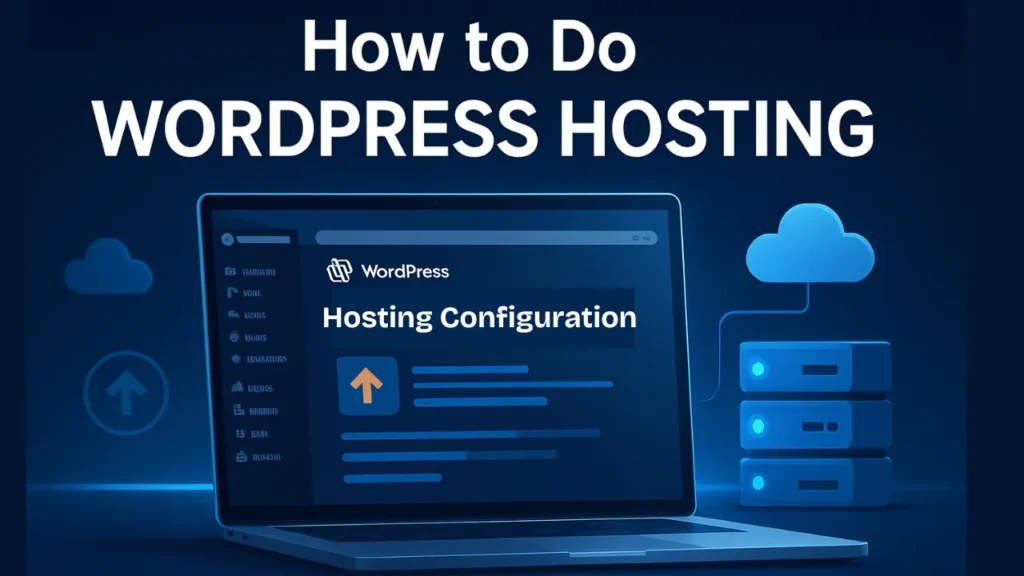
How to Do WordPress Hosting Step by Step
Hosting is the service that makes your WordPress site visible online. Here’s how to do WordPress hosting easily:
Step 1: Choose a Reliable Hosting Provider

Pick a hosting company that offers WordPress-optimised servers. Popular options include Bluehost, Hostinger, and SiteGround. Check for uptime, speed, and customer support before purchasing.
Step 2: Purchase a Hosting Plan and Domain Name

Select a plan based on your website type personal blog, business site, or portfolio. Also, register a domain name that represents your brand or topic.
Step 3: Install WordPress

Most hosting providers have a one-click WordPress install option. Log in to your hosting dashboard and click “Install WordPress.” Within minutes, your website setup will be ready.
Step 4: Log in to the WordPress Dashboard

After installation, you can log in to your dashboard by visiting:
Enter your username and password to access your website’s admin panel.
Step 5: Customize Your Website

Once inside the dashboard, go to Appearance > Themes to choose a design. You can also use Plugins to add SEO tools, contact forms, or security features.
WordPress Hosting Tips for Better Performance

-
- Use a lightweight theme – It helps your site load faster.
-
- Install caching plugins – Tools like WP Super Cache or LiteSpeed Cache improve speed.
-
- Update regularly – Always keep WordPress, themes, and plugins up to date.
-
- Secure your site – Use SSL certificates and a security plugin like Wordfence.
Common Mistakes Beginners Make

-
- Ignoring backups and updates
-
- Installing too many plugins
-
- Using low-quality themes
-
- Not optimizing images for speed
Avoid these issues to ensure your site runs smoothly without downtime.
Conclusion

Now you know what the WordPress dashboard is and how to do WordPress hosting step by step. By following these simple tips, you can set up your website, customize it, and start posting content in just a few hours.
Build Your Website with LFP
Want a fast, professional, and SEO-ready WordPress website?
Contact LFP today to get your website hosted, designed, and optimised by experts.
Let’s make your online presence powerful and professional!